Night of Frights › Remote & hybrid teams
Office plus video call
Halloween Games for Remote and Hybrid Teams
Most office Halloween games are built for people in the same room. Costume parades, pumpkin carving and party games leave coworkers on a video call watching from a small window.
A Halloween game works for a hybrid team when three things are true: everyone sees the same screen, everyone hears the same voice, and remote players are part of a team instead of an audience. This page shows how to set that up in Microsoft Teams, Zoom and Google Meet, plus a few more ideas for remote and hybrid teams.
A Halloween trivia game built for hybrid teams
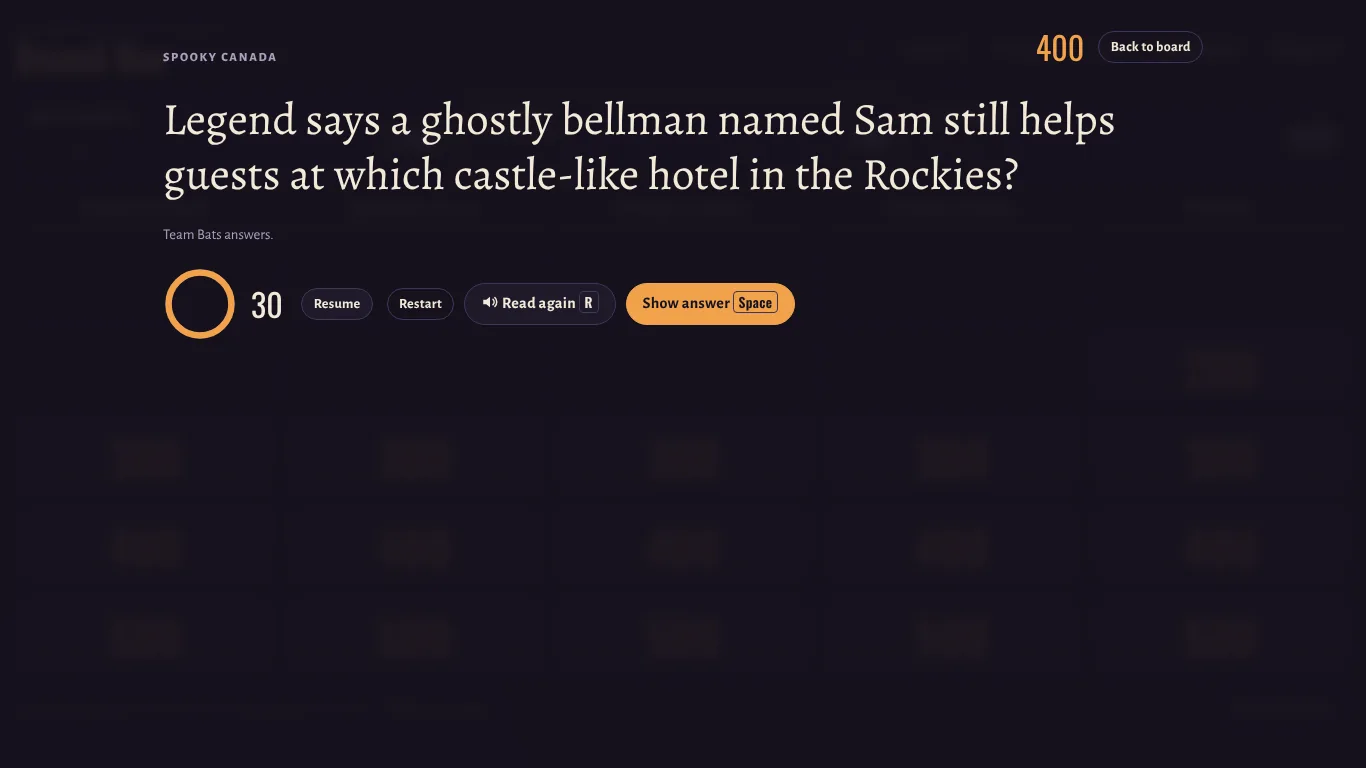
Victoria’s Night of Frights is a free trivia game made for exactly this situation: one big screen in the office, with part of the team joining by video. The host opens the game in a browser and shares that window in the meeting.
- One shared screenThe board, the scores and the timer are the same for the room and for the call.
- A narrator for everyoneEvery question is read aloud, so remote players don’t depend on a small, blurry screen.
- Remote players on teamsCoworkers on the call join a team and help answer, not just watch.
- Same 30 secondsEvery team gets the same time to talk it over, wherever they sit.
- Nothing to installOnly the host opens the website. Players don’t need an app, an account or a phone.
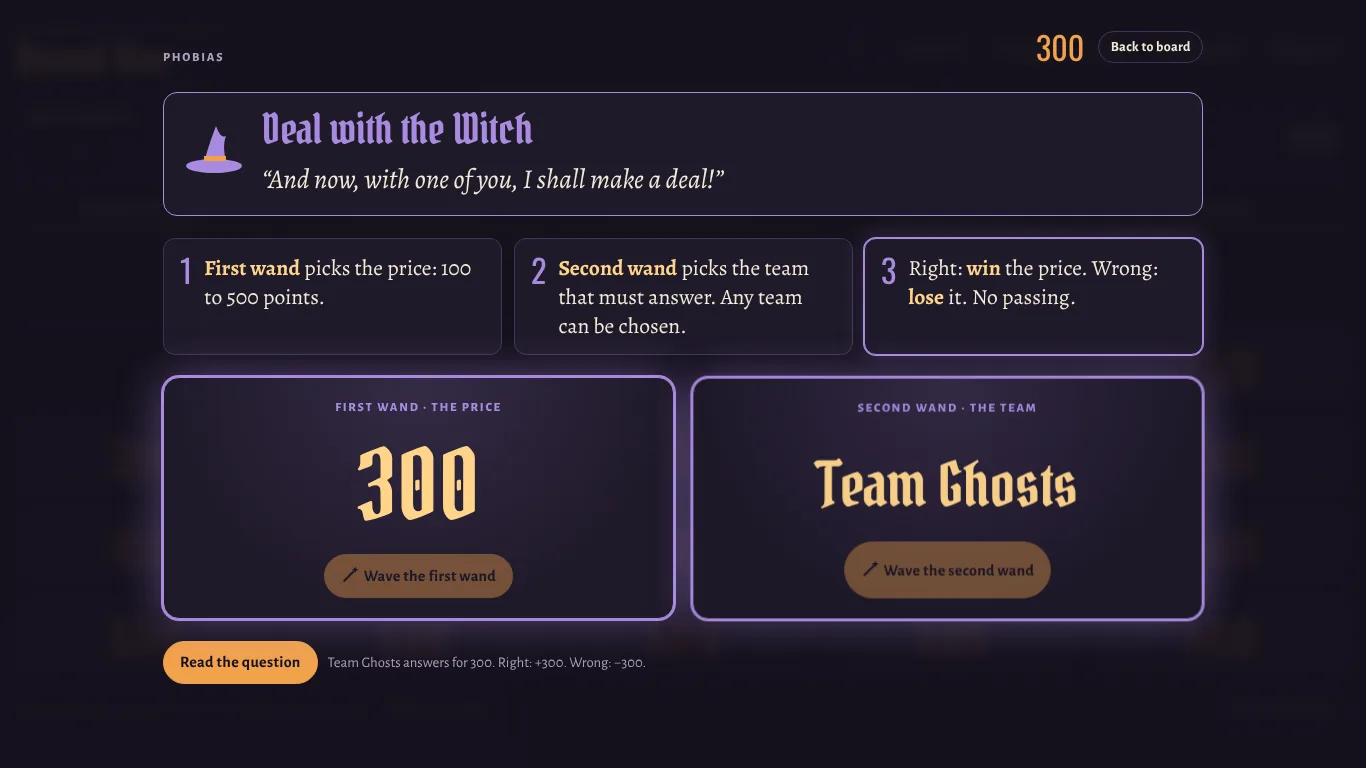
- About an hourTwo rounds, two surprises on the board and a final round with secret wagers.
How to share the game with sound
The one setting that matters: share the game with computer sound, otherwise remote players see the questions but don’t hear the narrator. Menu names change from time to time, but the option is always in the screen-sharing window.
- Open the game in Chrome or Edge on the computer connected to the big screen, name the teams and press F11 for full screen.
- Start the meeting on the same computer and connect the room’s speakers, so people in the office hear the narrator too.
- Share the browser window with sound turned on (see below for your app).
- Ask someone on the call to confirm that they can hear the test line in Voice settings before you start.
Microsoft Teams
Select Share in the meeting controls, turn on Include sound, then choose the browser window with the game. If you already started sharing without sound, stop and share again with the option on.
Zoom
Select Share Screen, pick the browser window, and tick Share sound at the bottom of the sharing window before you press Share.
Google Meet
Select Share screen and choose a tab rather than a window, pick the game’s tab and keep Also share tab audio turned on. Tab audio works best in Chrome.
How remote players join a team
- Mix them in. Put each remote coworker on a team with people in the room, rather than making one “remote team”.
- Give each team a side chat. A small group chat per team lets remote players share answers during the 30 seconds without everyone hearing.
- Name a captain. One person per team says the final answer out loud. It keeps things fair and fast.
- Final round on paper, or in the chat. In the Midnight round teams write down a secret wager and an answer. Remote players can send theirs to the host in a private message.
More Halloween ideas for remote and hybrid teams
Want to fill a longer party, or warm up before the trivia? These work on a call and in the room at the same time.
- Costume contest on camera. Everyone turns on their camera for a minute, then votes in a meeting poll. Add categories like “most creative” and “best last-minute costume”.
- Spooky background challenge. Remote players pick the creepiest virtual background; people in the room vote with a show of hands.
- Guess the costume photo. Collect childhood Halloween photos in advance and guess whose they are.
- Scary story relay. One person starts a ghost story with a single sentence, the next adds one more, alternating between the room and the call.
- Two truths and a lie, Halloween edition. Each person shares three spooky “facts” about themselves; everyone guesses the lie.
Invitation template
Copy it into an email or a chat message and fill in the day and time.
Ready for a hybrid Halloween?
Open the game, share it with sound on, and let the narrator do the talking. Free, no sign-up, nothing for players to install.
Also useful: the host guide, all 50 trivia questions with answers and frequently asked questions.